# Connecting DigitalOcean S3 Storage

### Creating a Bucket and Access Keys

1. Go to the DigitalOcean console ([link](https://cloud.digitalocean.com/)).
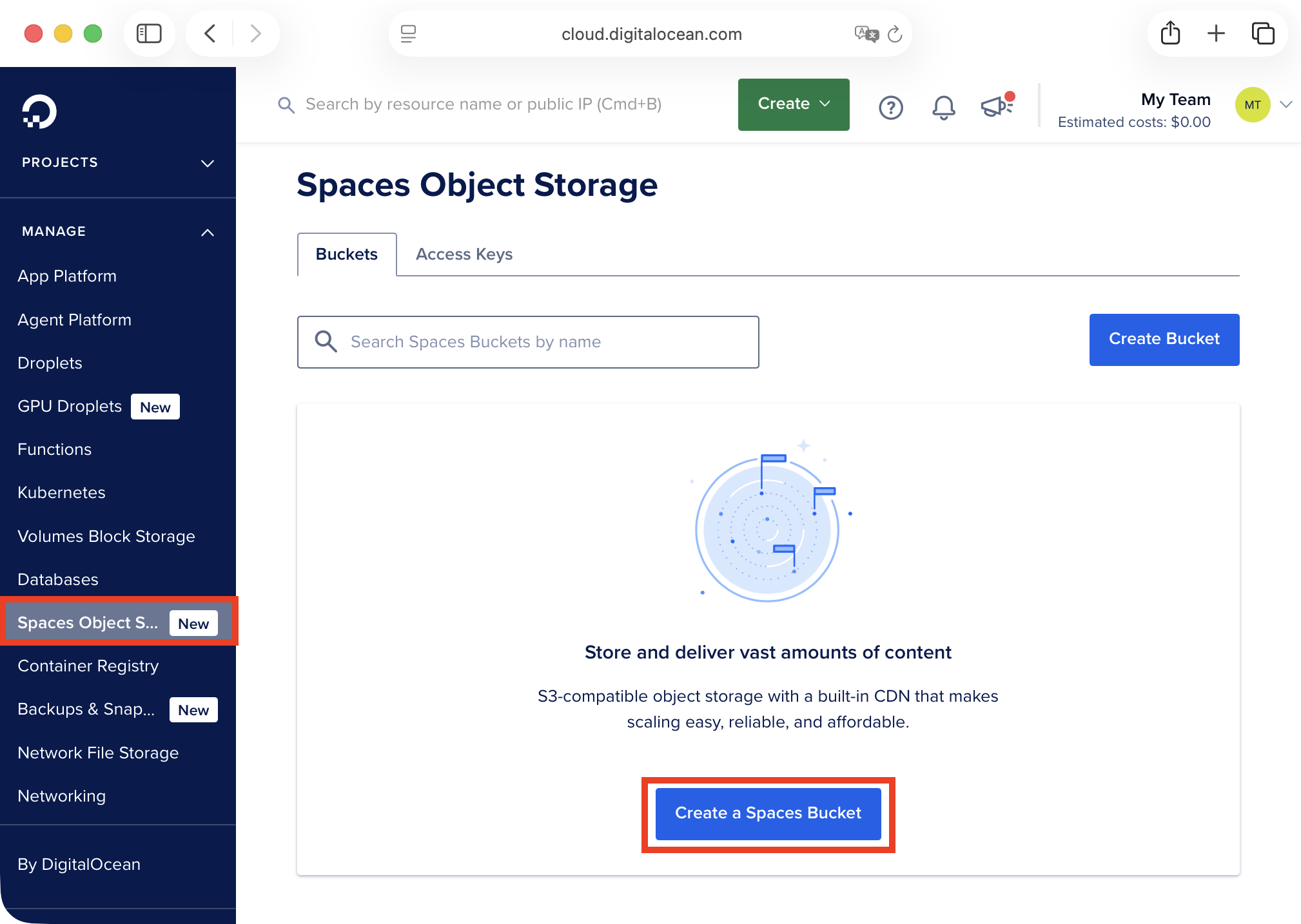
2. Navigate to **Manage** → **Spaces Object Storage**. Click **Create a Spaces Bucket** to create a new bucket.

<figure><img src="https://835495363-files.gitbook.io/~/files/v0/b/gitbook-x-prod.appspot.com/o/spaces%2FsZ8acWnNlSalIHQjMFu1%2Fuploads%2FKtsyhsXeFBotYjY3ce8k%2FS3DOSpacesObjectStorage.png?alt=media&#x26;token=9b35b53c-77e0-4c6b-977c-158ea8f593fe" alt=""><figcaption><p>Spaces Object Storage section</p></figcaption></figure>

3. On the bucket creation page, under **Choose a datacenter region**, select the region closest to your MikoPBX server. Choose **Standard Storage**.

{% hint style="info" %}
Remember your region name (**sgp1** in the screenshot below) — you will need it later when configuring MikoPBX.
{% endhint %}

<figure><img src="https://835495363-files.gitbook.io/~/files/v0/b/gitbook-x-prod.appspot.com/o/spaces%2FsZ8acWnNlSalIHQjMFu1%2Fuploads%2FFc5fTQTeRTAkCVsaKSgp%2FS3DOBucketParameters1.png?alt=media&#x26;token=fbd0ce08-f522-4490-987d-f275473b1e2f" alt=""><figcaption><p>Bucket creation parameters #1</p></figcaption></figure>

4. In the **Choose a unique Spaces Bucket name** field, enter a name of your choice for the bucket.

Click **Subscribe & Create Bucket**.

<figure><img src="https://835495363-files.gitbook.io/~/files/v0/b/gitbook-x-prod.appspot.com/o/spaces%2FsZ8acWnNlSalIHQjMFu1%2Fuploads%2FuRNSGWH69v5ifOc5HUjK%2FS3DOBucketParameters2.png?alt=media&#x26;token=4f605b9a-ea8f-4fd3-8b7a-2ba1ecb664f5" alt=""><figcaption><p>Bucket creation parameters #2</p></figcaption></figure>

5. Open the page of the newly created bucket by clicking its name in the **Buckets** section.

<figure><img src="https://835495363-files.gitbook.io/~/files/v0/b/gitbook-x-prod.appspot.com/o/spaces%2FsZ8acWnNlSalIHQjMFu1%2Fuploads%2FGTfXLHkZIiG0oS1tUO0o%2FS3DOcreatedBucket.png?alt=media&#x26;token=64469b4f-44b3-428a-9346-2cf420d8ca69" alt=""><figcaption><p>Created bucket in the Buckets section</p></figcaption></figure>

6. Go to the **Settings** tab.

<figure><img src="https://835495363-files.gitbook.io/~/files/v0/b/gitbook-x-prod.appspot.com/o/spaces%2FsZ8acWnNlSalIHQjMFu1%2Fuploads%2FjM3CG6WJM0ehe0wjXq1v%2FS3DOCreatedBucketSettings.png?alt=media&#x26;token=1d590234-30c6-461e-9e4f-f114010ac528" alt=""><figcaption><p>Settings tab on the created bucket page</p></figcaption></figure>

7. Scroll down to the **Access Keys** section. Click **Create Access Key** to generate a new key pair.

<figure><img src="https://835495363-files.gitbook.io/~/files/v0/b/gitbook-x-prod.appspot.com/o/spaces%2FsZ8acWnNlSalIHQjMFu1%2Fuploads%2FOvI313IvwKdmgBppFVeQ%2FS3DOCreateAccessKeyBtn.png?alt=media&#x26;token=401a3923-65c2-4c4d-ad1f-9923ca458366" alt=""><figcaption><p>Access Keys section</p></figcaption></figure>

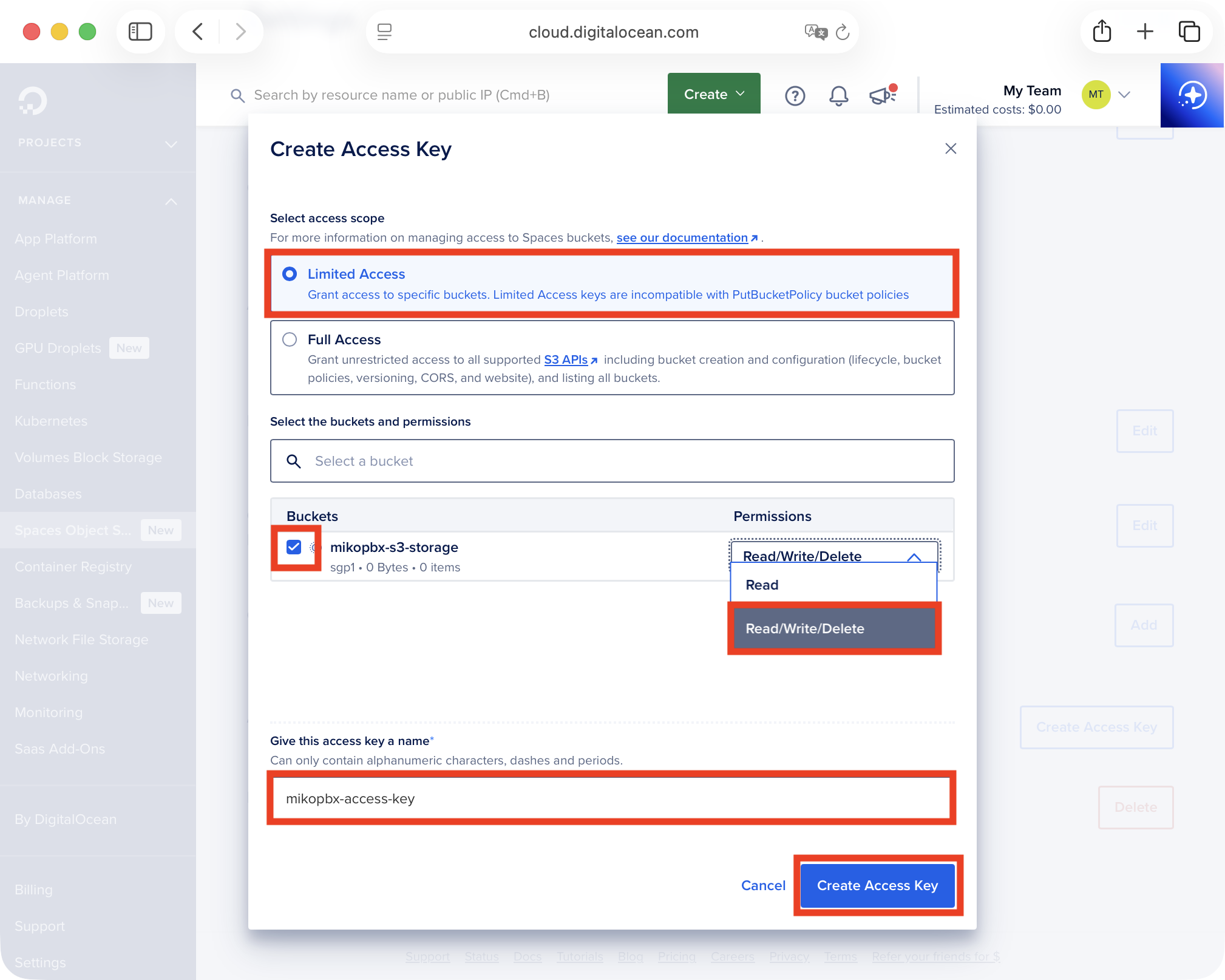
8. Fill in the required parameters for the new key:

* **Select access scope** — Limited Access.
* **Buckets** — select the bucket you created earlier.
* **Permissions** — Read/Write/Delete.
* **Give this access key a name** — enter an arbitrary name to identify this key pair.

Click **Create Access Key**.

<figure><img src="https://835495363-files.gitbook.io/~/files/v0/b/gitbook-x-prod.appspot.com/o/spaces%2FsZ8acWnNlSalIHQjMFu1%2Fuploads%2FtrGVMaPivu3AxFVKbUYF%2FS3DOAccessKeysParameters.png?alt=media&#x26;token=fa5d0ce1-0faa-464a-895c-dfb02ace564a" alt=""><figcaption><p>Access key creation parameters</p></figcaption></figure>

Your key pair values (**Access Key ID** and **Secret Key**) will be displayed. Save these values — you will need them when configuring MikoPBX.

<figure><img src="https://835495363-files.gitbook.io/~/files/v0/b/gitbook-x-prod.appspot.com/o/spaces%2FsZ8acWnNlSalIHQjMFu1%2Fuploads%2Fn511U0emCRQ3oXC06C92%2FS3DOCreatedAccessKeys&#x27;.png?alt=media&#x26;token=4df6acac-a713-48e3-8aeb-c677c749bb8d" alt=""><figcaption><p>Access key pair</p></figcaption></figure>

### Connecting to MikoPBX

1. Go to the **Maintenance** → **Storage** tab.

<figure><img src="https://835495363-files.gitbook.io/~/files/v0/b/gitbook-x-prod.appspot.com/o/spaces%2FsZ8acWnNlSalIHQjMFu1%2Fuploads%2FbiJPZsIEfMa9aT1tNvCx%2FstorageSectionMikoPBX-cut.png?alt=media&#x26;token=f8eccead-5fce-4959-8759-cf953ee700bb" alt=""><figcaption><p>Storage section in MikoPBX web-interface</p></figcaption></figure>

2. Open the **S3 Cloud Storage** tab and fill in the following fields:

* **Automatically upload recordings to cloud storage** — enable the toggle.
* **S3 Endpoint URL** — enter `https://sgp1.digitaloceanspaces.com`, replacing `sgp1` with your region.
* **S3 Region** — enter the region of your DigitalOcean bucket (e.g. `sgp1` in this guide).
* **S3 Bucket Name** — enter the name of the bucket you created in DigitalOcean (e.g. `mikopbx-s3-storage` in this guide).
* **Access Key** and **Secret Key** — paste the values obtained in the first part of this guide.

Use the **Local Storage (S3 mode)** slider to configure how long recordings are kept locally before being deleted after upload to the cloud.

{% hint style="info" %}
A shorter local retention period frees up disk space faster.
{% endhint %}

Click **Save**.

<figure><img src="https://835495363-files.gitbook.io/~/files/v0/b/gitbook-x-prod.appspot.com/o/spaces%2FsZ8acWnNlSalIHQjMFu1%2Fuploads%2Fh9Ae9U7c8Mo0QpSJ2S17%2FS3DOMikoPBXCredentials.png?alt=media&#x26;token=fc9e811c-9fc9-4b0c-98a5-1fb35d6924a9" alt=""><figcaption><p>DigitalOcean S3 connection parameters</p></figcaption></figure>

After saving the settings, click **Test Connection**. If the connection is successful, you will see the message **"S3 connection successful"** and synchronization of call recordings will begin.

<figure><img src="https://835495363-files.gitbook.io/~/files/v0/b/gitbook-x-prod.appspot.com/o/spaces%2FsZ8acWnNlSalIHQjMFu1%2Fuploads%2FkqXwlDKR10CfcN0wsII8%2FS3DOSuccesfulConnection.png?alt=media&#x26;token=70ca45a7-0477-45cc-ba5e-bac8eead0d6b" alt=""><figcaption><p>Successful connection</p></figcaption></figure>