> For the complete documentation index, see [llms.txt](https://docs.mikopbx.com/mikopbx/llms.txt). Markdown versions of documentation pages are available by appending `.md` to page URLs; this page is available as [Markdown](https://docs.mikopbx.com/mikopbx/english/modules/miko/module-a-i-supervisor/miko-ai-worker.md).
# AI Supervisor Worker
Installing and using AI Supervisor Worker: connecting to MikoPBX, local models, job processing, voice analytics, and diagnostics on a Mac.
**AI Supervisor Worker** is a standalone macOS application that performs local AI analysis of completed MikoPBX transcripts. The application receives jobs from the **AI Supervisor** module, uses a local language model, processes the call recording, and sends a structured result back to the PBX.
The application does not select which calls to analyze and does not store the server-side queue. Transcript import, analysis components, model profile, result language, attention rules, and saved results are managed by the module in MikoPBX.
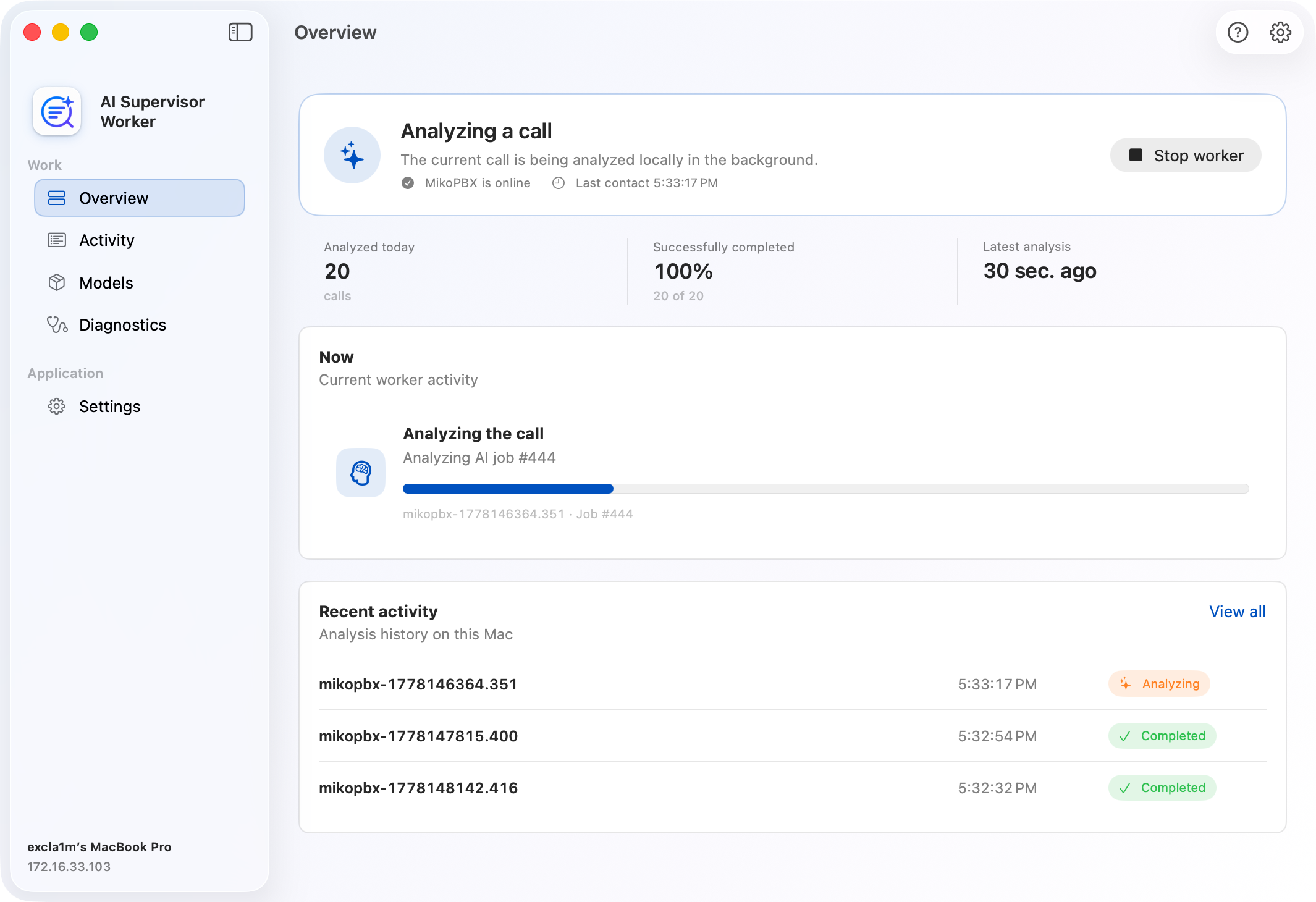
Worker application interface
### Requirements and compatibility
* A Mac with Apple silicon.
* macOS 14 or later.
* MikoPBX 2025.1.1 or later.
* Network access from the Mac to MikoPBX.
* A local Ollama runtime or an OpenAI-compatible local endpoint.
* Internet access for the initial runtime and model installation.
### Application navigation
The sidebar contains:
| Section | Purpose |
| --------------- | ----------------------------------------------------------------------------- |
| **Overview** | Worker readiness, connection, current work, and summary statistics. |
| **Activity** | Current job and local processing history with filters and export. |
| **Models** | Ollama, the model selected by the PBX, analysis components, and local models. |
| **Diagnostics** | Connection, runtime readiness, automatic recovery, and logs. |
| **Settings** | MikoPBX connection, local behavior, and analysis parameters. |
There is no longer a separate **Registration** screen. The PBX address, token, worker name, and Worker UID are under **Settings**.
### Overview
**Overview** is the main AI Supervisor Worker status screen. It includes:
* the overall status and primary available action;
* MikoPBX connection status and last contact time;
* calls analyzed today and the success rate;
* current work and job progress;
* recent local jobs.
Main states:
| State | What to do |
| ------------------------------ | ------------------------------------------------------------------------ |
| **Setup required** | Open the connection settings and enter the PBX address and worker token. |
| **Checking local AI** | Wait while Ollama and the models are checked. |
| **Model download in progress** | Do not close the application until the download finishes. |
| **Local AI needs attention** | Open **Models**. |
| **Ready to start** | Click **Start worker**. |
| **Everything works** | The worker is connected and checks the queue automatically. |
| **Analyzing a call** | The current job is being processed locally. |
| **Connecting to MikoPBX** | The worker automatically restores the connection. |
| **Worker needs attention** | Open **Diagnostics**. |
### Activity
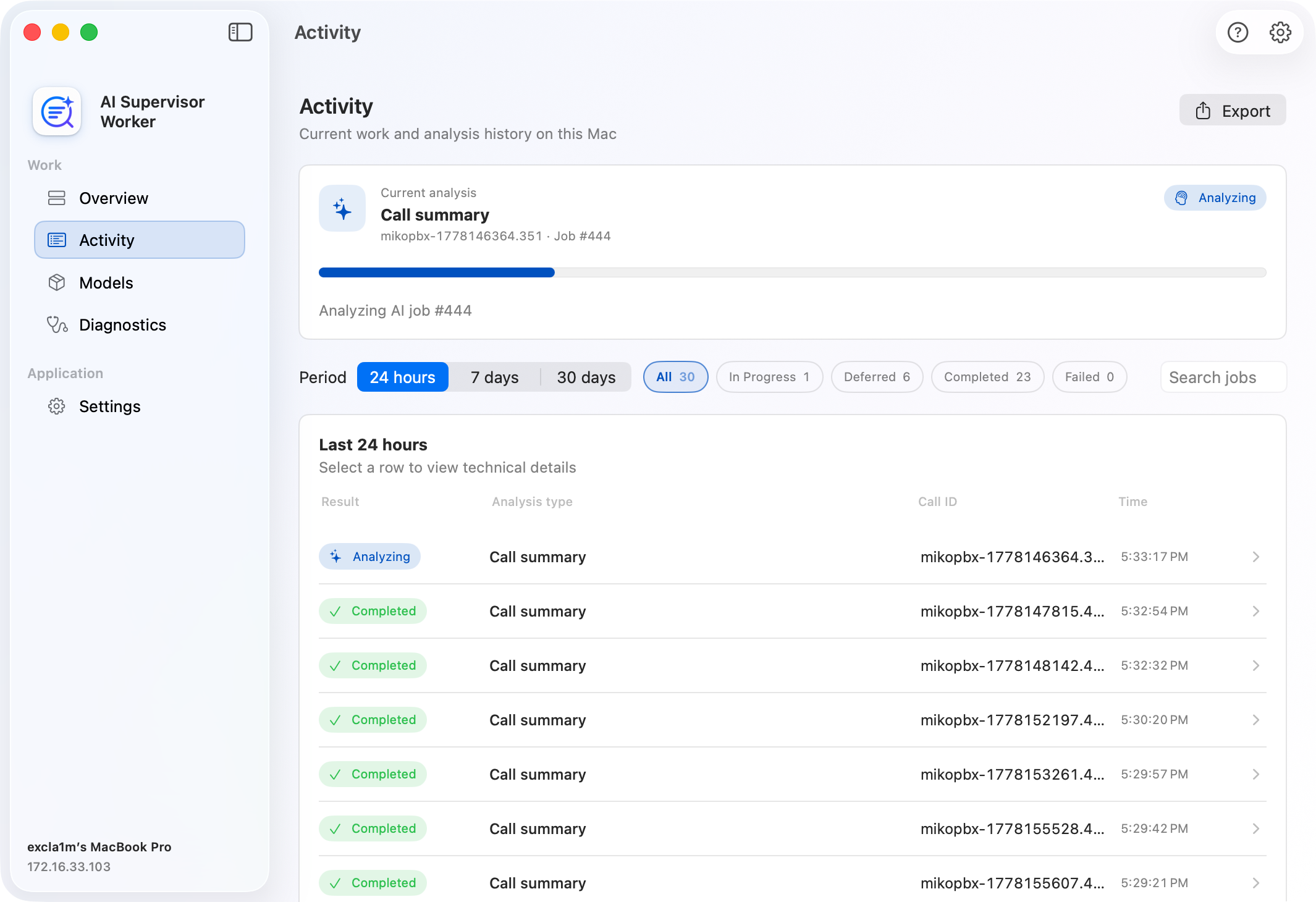
**Activity** shows the current work and the job history saved on this Mac. The history persists after the application restarts, but it is not the MikoPBX server-side queue.
Available controls include:
* periods of 24 hours, 7 days, and 30 days;
* **In Progress**, **Deferred**, **Completed**, and **Failed** filters;
* search by job and Call ID;
* expandable rows with the model, analysis type, components, and error text;
* export of visible rows to CSV.
The **Deferred** status means that the worker safely released the job for another processing attempt, for example when a local model or dependency was temporarily unavailable.
Activity in the application
### Models
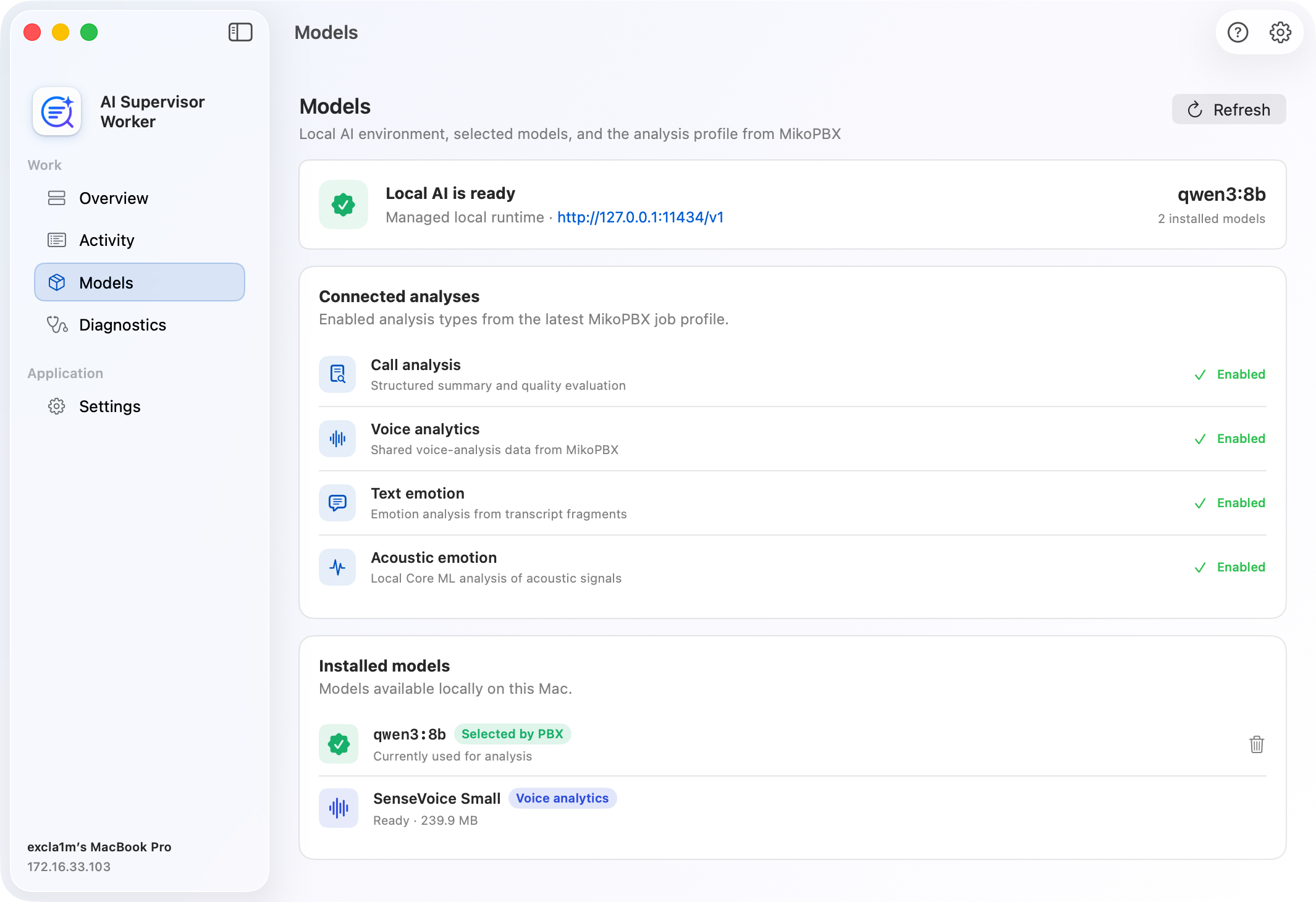
**Models** shows the local runtime, the analysis profile from MikoPBX, and installed models.
Former model management screen
The page includes:
* an Ollama installation card if the runtime is not yet available;
* endpoint and model readiness;
* the model selected by MikoPBX;
* the connected analysis profile: Call analysis, Voice analytics, Text emotion, and Acoustic emotion;
* a list of installed local models;
* Voice Analytics model status;
* current download progress.
The **Refresh** button checks the runtime, model, and voice components again. The current interface has no separate **Check Runtime** or **Check Model** buttons.
The following actions are available for local models:
| Action | Description |
| ------------------ | ------------------------------------------------ |
| **Show in Finder** | Open the model or related files in Finder. |
| **Delete** | Delete the model from the managed local runtime. |
Deletion is disabled while the worker is running or the model is in use. If MikoPBX selects the deleted model again, the worker can download it again.
### Diagnostics
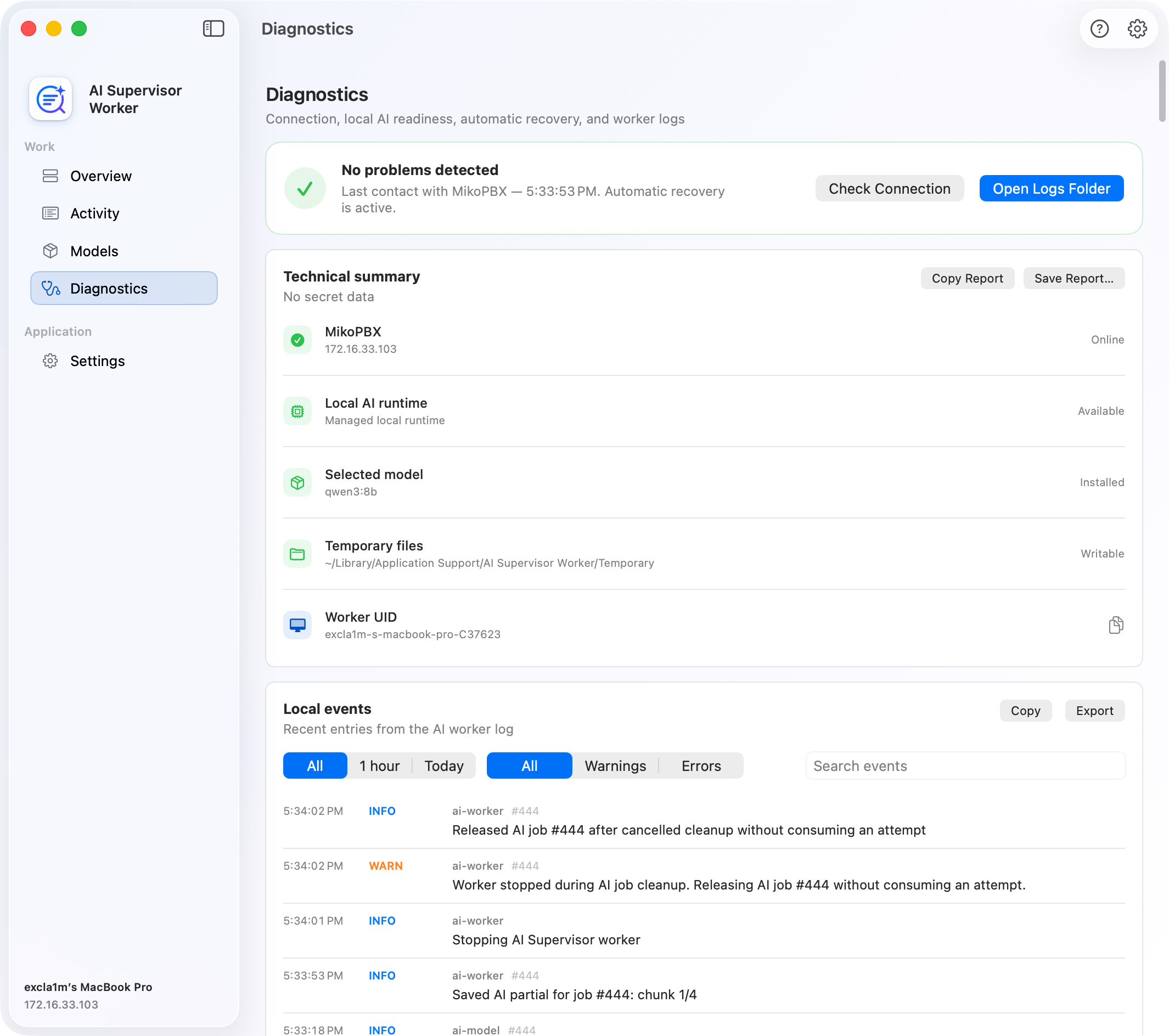
**Diagnostics** combines status checks and the local log.
The top section shows:
* MikoPBX connection status;
* the token and Worker UID;
* the local endpoint and selected model;
* recovery after a transient error;
* **Check Connection** and **Open Logs Folder** buttons.
The log supports:
* **1 hour**, **Today**, and **All** periods;
* **All**, **Warnings**, and **Errors** levels;
* event search;
* copying visible entries;
* exporting to a file.
Diagnostics in the application
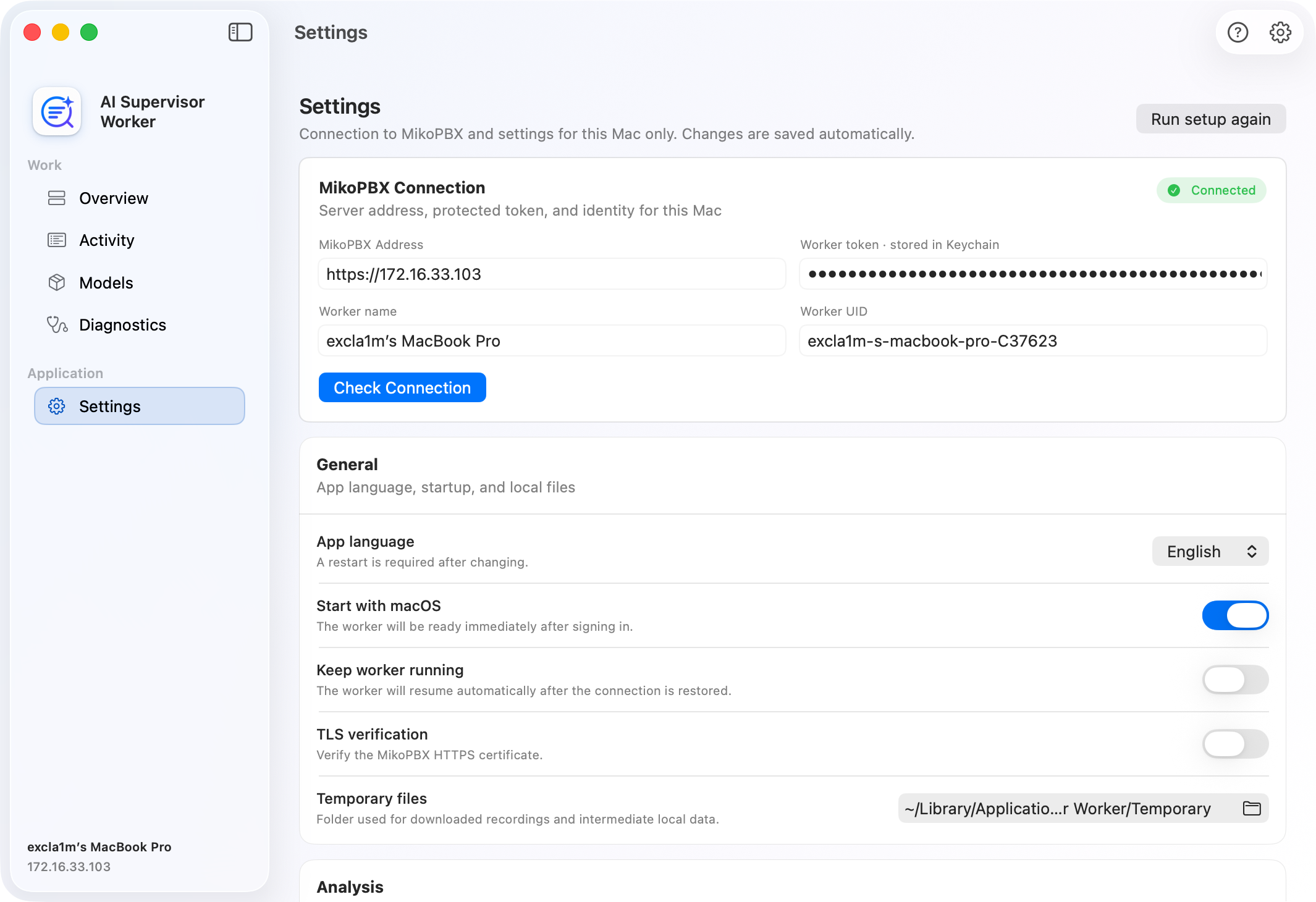
### Settings
Application settings
Settings are divided into three groups.
#### Connection
This group contains the PBX address, token stored in Keychain, worker name, Worker UID, and connection test.
Required fields:
| Field | Description |
| ------------------- | ------------------------------------------------------------- |
| **MikoPBX Address** | Full address beginning with `http://` or `https://`. |
| **Worker token** | Key created under AI Supervisor → **Settings** → **Workers**. |
| **Worker name** | A friendly name for this Mac in MikoPBX. |
| **Worker UID** | A stable technical identifier. |
Click **Check Connection**. The application first requests `GET /worker-api-contract`, verifies ModuleAISupervisor, the API version, and the required capabilities, and then uses the token to register.
MikoPBX connection settings
#### General
| Setting | Purpose |
| ----------------------- | --------------------------------------------------------------------- |
| **App language** | Interface language. Changing it requires an application restart. |
| **Start with macOS** | Open the application after the user signs in. |
| **Keep worker running** | Resume automatically after the network or PBX connection is restored. |
| **TLS verification** | Verify the MikoPBX HTTPS certificate. |
| **Custom CA file** | Custom PEM/CRT/CER file for a private certificate. |
| **Temporary files** | Directory for temporary recordings and intermediate data. |
#### Analysis
| Setting | Purpose |
| ------------------------------ | ----------------------------------------------------------------------------------- |
| **Analysis profile** | Opens **Models**; active components are supplied by the MikoPBX job. |
| **OpenAI-compatible endpoint** | Local endpoint for structured analysis; the default is `http://127.0.0.1:11434/v1`. |
| **Emotion model profile** | Model used for text-based emotion analysis. |
| **Max fragments** | Maximum number of fragments used for emotion analysis. |
| **Minimum call length** | Shorter calls skip the optional emotion enrichment stage. |
The primary model profile, context size, and analysis components are configured in MikoPBX and sent with every job.
---
# Agent Instructions
This documentation is published with GitBook. GitBook is the documentation platform designed so that both humans and AI agents can read, navigate, and reason over technical content effectively. Learn more at gitbook.com.
## Querying This Documentation
If you need additional information that is not directly available in this page, you can query the documentation dynamically by asking a question.
Perform an HTTP GET request on the current page URL with the `ask` query parameter, and the optional `goal` query parameter:
```
GET https://docs.mikopbx.com/mikopbx/english/modules/miko/module-a-i-supervisor/miko-ai-worker.md?ask=&goal=
```
`ask` is the immediate question: it should be specific, self-contained, and written in natural language.
`goal` is optional and describes the broader end goal you are ultimately trying to accomplish on behalf of the user. GitBook uses it to tailor the answer towards what is most useful for that goal.
The response will contain a direct answer to the question and relevant excerpts and sources from the documentation.
Use this mechanism when the answer is not explicitly present in the current page, you need clarification or additional context, or you want to retrieve related documentation sections.