> For the complete documentation index, see [llms.txt](https://docs.mikopbx.com/mikopbx/llms.txt). Markdown versions of documentation pages are available by appending `.md` to page URLs; this page is available as [Markdown](https://docs.mikopbx.com/mikopbx/english/modules/miko/module-cloud-speech-to-text.md).

# Cloud Speech-to-Text

Module description

The **Cloud Speech-to-Text** module automatically transcribes recorded MikoPBX calls and saves the completed transcripts on the PBX.

{% hint style="info" %}
The module is fully autonomous: no separate worker application is required. If audio recordings cannot be sent to an external service, use the [Local Speech To Text module](/mikopbx/english/modules/miko/module-local-speech-to-text.md).
{% endhint %}

{% hint style="warning" %}
Submitting a recording for recognition is a paid action: the cost is deducted from your MIKO license balance. You can check prices and top up your balance at [lm.miko.ru](https://lm.miko.ru).
{% endhint %}

<figure><img src="https://835495363-files.gitbook.io/~/files/v0/b/gitbook-x-prod.appspot.com/o/spaces%2FsZ8acWnNlSalIHQjMFu1%2Fuploads%2Fh94WdDcLwvBn4csMHLId%2FCloudSTTTranscriptCard.png?alt=media&amp;token=24294582-af1f-465c-813c-1bbda3138b51" alt=""><figcaption><p>Example of a call transcript created by the Cloud Speech-to-Text module</p></figcaption></figure>

### Requirements and compatibility

* An active MIKO license with the cloud transcription option and a positive balance.
* Call recording enabled for the required routes, queues, or employees.
* Direct outbound HTTPS access to `speech.mikolab.ru:443`.

### Installing the module

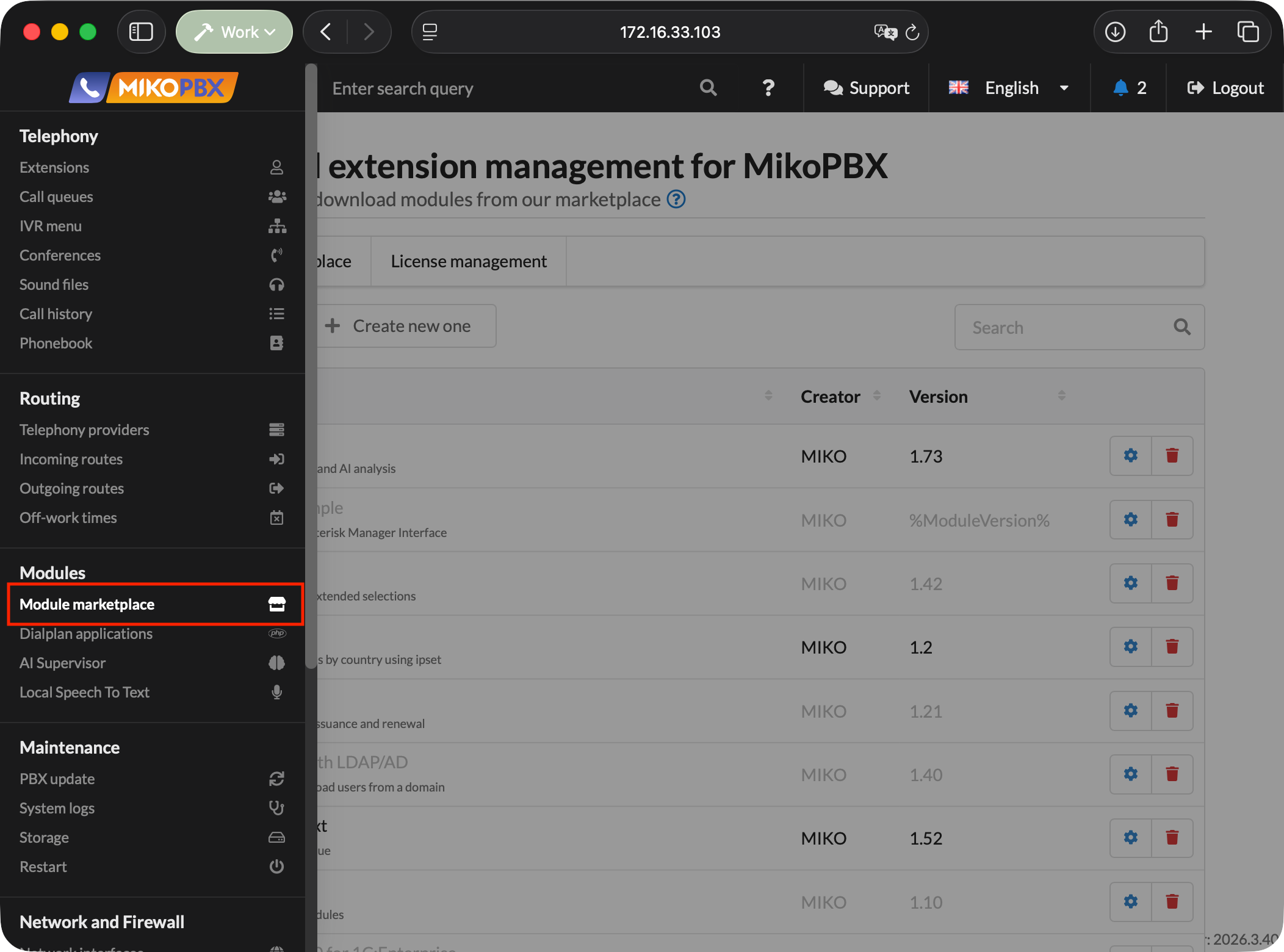
1. Open the MikoPBX web interface. Go to **Modules** → **Module Marketplace**.

<figure><img src="https://835495363-files.gitbook.io/~/files/v0/b/gitbook-x-prod.appspot.com/o/spaces%2FsZ8acWnNlSalIHQjMFu1%2Fuploads%2Fgit-blob-077c6ead7c0da0da965a81334a88a7d27f7b4532%2FMikoPBXModuleMarketplace.png?alt=media" alt=""><figcaption><p>MikoPBX Module Marketplace section</p></figcaption></figure>

2. Find the **Cloud Transcription** module and install it.

<figure><img src="https://835495363-files.gitbook.io/~/files/v0/b/gitbook-x-prod.appspot.com/o/spaces%2FsZ8acWnNlSalIHQjMFu1%2Fuploads%2F04qbZo1pjiewlgrjlL4Q%2FCloudSTTMarketplace.png?alt=media&amp;token=263924dc-db68-4fa9-9e2a-9c14819c1674" alt=""><figcaption><p>The Cloud Transcription module in the Marketplace</p></figcaption></figure>

3. Open the list of installed modules and enable the module. Click the settings button to the right of the module version.

<figure><img src="https://835495363-files.gitbook.io/~/files/v0/b/gitbook-x-prod.appspot.com/o/spaces%2FsZ8acWnNlSalIHQjMFu1%2Fuploads%2F7i9NtmOaEWyna0Aarl96%2FClouddSTTModuleInstalled.png?alt=media&amp;token=c18416b2-848f-4638-9340-57637ce3c40f" alt=""><figcaption><p>Enabling the module and opening its page from the installed modules list.</p></figcaption></figure>

### First launch

The setup wizard opens when you launch the module for the first time. On the first page, the module warns that selected call recordings are sent to `speech.mikolab.ru` for recognition. Confirm your consent by clicking **Continue**.

<figure><img src="https://835495363-files.gitbook.io/~/files/v0/b/gitbook-x-prod.appspot.com/o/spaces%2FsZ8acWnNlSalIHQjMFu1%2Fuploads%2FXXxx9S9xJGthazux2AbD%2FCloudSTTOnboardingStep1.png?alt=media&amp;token=4525f57e-1798-47d9-95ce-7cbd3cc4e59a" alt=""><figcaption><p>The Privacy step of the first-launch setup wizard.</p></figcaption></figure>

At the second onboarding step, click **Check connection**: the module checks the service API availability, license authorization, and balance status.

<figure><img src="https://835495363-files.gitbook.io/~/files/v0/b/gitbook-x-prod.appspot.com/o/spaces%2FsZ8acWnNlSalIHQjMFu1%2Fuploads%2FOKwnrPY9lmBbwfkkM1D2%2FCloudSTTOnboardingStep2.png?alt=media&amp;token=1d9b6757-a15b-4b6f-9c2b-931e6e367078" alt=""><figcaption><p>The Connection step of the first-launch setup wizard.</p></figcaption></figure>

At the next step, review the call selection rules (directions, employees, and limits). Confirm that automatic selection should be enabled and click **Activate module**. The first submission will occur only after an eligible recording appears.

<figure><img src="https://835495363-files.gitbook.io/~/files/v0/b/gitbook-x-prod.appspot.com/o/spaces%2FsZ8acWnNlSalIHQjMFu1%2Fuploads%2FzjX2X6PupVkLuElmfl7L%2FCloudSTTOnboardingStep3p1.png?alt=media&amp;token=bd961590-50fa-4a9c-99ee-670235c29256" alt=""><figcaption><p>Call selection rules in the Rules and activation step of the first-launch setup wizard.</p></figcaption></figure>

<figure><img src="https://835495363-files.gitbook.io/~/files/v0/b/gitbook-x-prod.appspot.com/o/spaces%2FsZ8acWnNlSalIHQjMFu1%2Fuploads%2FpSOhqNqddK6cywixENau%2FCloudSTTOnboardingStep3p2.png?alt=media&amp;token=7598ba4b-6cd3-4d78-9b5e-e64e0f4f350c" alt=""><figcaption><p>Confirmation of automatic call selection and module activation in the Rules and activation step</p></figcaption></figure>

### Overview tab

This tab opens by default and shows the module status:

* **Processing**, **Transcripts**, **Incidents**, and **Balance** cards with a refresh button;
* the **Successfully transcribed in the last 7 days** chart, showing minutes of recognized audio by day;
* the **Recent jobs** list with statuses and a link to the queue.

<figure><img src="https://835495363-files.gitbook.io/~/files/v0/b/gitbook-x-prod.appspot.com/o/spaces%2FsZ8acWnNlSalIHQjMFu1%2Fuploads%2Fp0ShMyDhC5OCdsvm2fg7%2FCloudSTTOverview.png?alt=media&amp;token=2ae1e74b-3b76-4238-9117-7853ef3c888c" alt=""><figcaption><p>The module's main screen, showing the Overview tab.</p></figcaption></figure>

### Transcripts tab

This tab contains recognition results stored locally. You can filter the list by call period using the calendar or **Today**, and search by number, employee, or transcript text. The table shows the date, direction, counterparty, employee, status (complete or partial), duration, and update time.

<figure><img src="https://835495363-files.gitbook.io/~/files/v0/b/gitbook-x-prod.appspot.com/o/spaces%2FsZ8acWnNlSalIHQjMFu1%2Fuploads%2FqNUfgUXqlVSr9Ks2a13l%2FCloudSTTTranscripts.png?alt=media&amp;token=fb725637-2489-4a46-9f1d-972f454c515b" alt=""><figcaption><p>The Transcripts tab in the Cloud Speech-to-Text module</p></figcaption></figure>

Click a transcript to open its card. It contains:

* conversation turns with timestamps and participant roles: employee/client;
* a built-in player with playback speed controls and recording download;
* search;
* export to **JSON** or **TXT**;
* transcript deletion.

Clicking a turn moves the player to the corresponding point in the recording.

<figure><img src="https://835495363-files.gitbook.io/~/files/v0/b/gitbook-x-prod.appspot.com/o/spaces%2FsZ8acWnNlSalIHQjMFu1%2Fuploads%2Fh94WdDcLwvBn4csMHLId%2FCloudSTTTranscriptCard.png?alt=media&amp;token=24294582-af1f-465c-813c-1bbda3138b51" alt=""><figcaption><p>A transcript card with conversation turns and the recording player.</p></figcaption></figure>

### Queue tab

This tab manages the local job queue. It provides a status filter, a period filter (1 day or all time), search by number or direction, and pagination.

| Filter group        | Job states                                                                                                     |
| ------------------- | -------------------------------------------------------------------------------------------------------------- |
| **Waiting**         | Discovered, Waiting for recording, Ready to submit, Waiting for safe submission                                |
| **Processing**      | Submitting, Accepted by service, Recognizing                                                                   |
| **Needs attention** | Submission outcome unknown, Local failure, Service failure, Invalid result, Processing stalled, Result expired |
| **Completed**       | Completed, Result discarded after deletion, Cancelled                                                          |

Technical information is available for each job: job ID, run number (generation), processing stage, error code, HTTP status and network error type, CDR ID, audio size, and audio format.

| Action              | Availability and behavior                                                                                                                                 |
| ------------------- | --------------------------------------------------------------------------------------------------------------------------------------------------------- |
| **Cancel job**      | Available only before audio upload begins. No confirmation is required.                                                                                   |
| **Retry job**       | Requires explicit confirmation of a paid action. Creates a new job generation and may cause another charge. The module does not retry jobs automatically. |
| **Open transcript** | Opens the completed transcript on the Transcripts tab.                                                                                                    |

<figure><img src="https://835495363-files.gitbook.io/~/files/v0/b/gitbook-x-prod.appspot.com/o/spaces%2FsZ8acWnNlSalIHQjMFu1%2Fuploads%2FVEwwYgtZLPIhMRL8Ndb8%2FCloudSTTQueue.png?alt=media&amp;token=9c7bf4ed-f39e-45fa-ad6d-d5845685a338" alt=""><figcaption><p>The Queue tab in the Cloud Speech-to-Text module</p></figcaption></figure>

### Settings tab

This tab configures call recognition settings: which calls to recognize and which to skip. The parameters in each settings section are summarized below.

#### **Directions and participants**

<table><thead><tr><th width="248.546875">Setting</th><th>Purpose</th></tr></thead><tbody><tr><td><strong>Process incoming calls</strong></td><td>Whether to recognize calls received by internal extensions.</td></tr><tr><td><strong>Process outgoing calls</strong></td><td>Whether to recognize calls initiated by employees to external numbers.</td></tr><tr><td><strong>Process internal calls</strong></td><td>Whether to recognize conversations between employees.</td></tr><tr><td><strong>Employees</strong></td><td>Which employees' calls to recognize or exclude from recognition.</td></tr></tbody></table>

#### **Number rules**

Rules include or exclude numbers from processing. Each rule specifies the direction (either direction, incoming, or outgoing), match type (exact number or prefix), number, and action (include or exclude).

<figure><img src="https://835495363-files.gitbook.io/~/files/v0/b/gitbook-x-prod.appspot.com/o/spaces%2FsZ8acWnNlSalIHQjMFu1%2Fuploads%2FLEsxOsU6uDyHpC8nAvKy%2FCloudSTTNumberRules.png?alt=media&amp;token=6b944685-f582-403e-8ea9-208a720b31c6" alt=""><figcaption><p>The Number rules settings section</p></figcaption></figure>

#### **Processing limits**

This section also defines which calls to process and which to skip. It sets the daily limit and the number of concurrent jobs. The table below describes these settings in more detail.

<table><thead><tr><th width="312.39453125">Setting</th><th>Purpose</th></tr></thead><tbody><tr><td><strong>Minimum duration</strong></td><td>Calls shorter than this value are not submitted.</td></tr><tr><td><strong>Maximum duration</strong></td><td>Calls longer than this value are not submitted.</td></tr><tr><td><strong>Daily limit</strong></td><td>How many minutes of audio can be submitted for recognition per day.</td></tr><tr><td><strong>Concurrent cloud jobs</strong></td><td>How many recordings the service recognizes simultaneously; the remaining recordings wait in the local queue.</td></tr></tbody></table>

{% hint style="info" %}
When the daily limit of minutes is exhausted, new jobs wait until the next day. If the administrator increases the limit, submissions resume immediately.
{% endhint %}

#### **Mode and retention**

This section sets the recognition language and mode, as well as the retention period for completed transcripts.

<table><thead><tr><th width="174.875">Setting</th><th>Purpose</th></tr></thead><tbody><tr><td><strong>Recognition mode</strong></td><td>Deferred (deferred-general) costs less, but processing a recording can take up to approximately 12 hours. Standard (general) is faster but costs more.</td></tr><tr><td><strong>Recognition language</strong></td><td>The language used to recognize the recordings.</td></tr><tr><td><strong>Transcript retention</strong></td><td>Limited (1–3650 days) or unlimited.</td></tr></tbody></table>

{% hint style="info" %}
After the retention period expires, transcripts are deleted during scheduled daily cleanup. MikoPBX CDR records and audio recordings are not affected.
{% endhint %}

<figure><img src="https://835495363-files.gitbook.io/~/files/v0/b/gitbook-x-prod.appspot.com/o/spaces%2FsZ8acWnNlSalIHQjMFu1%2Fuploads%2FHKieXv7ze4dJ5QG2XP6A%2FCloudSTTOtherSettings.png?alt=media&amp;token=84ebc5ea-4a37-4ae8-89bd-7ba5210e4138" alt=""><figcaption><p>Processing limits, Mode and retention settings</p></figcaption></figure>

### Pausing processing

The **Pause recording processing** button in the module header temporarily stops the selection and submission of new recordings, for example during maintenance or while investigating an incident. Jobs already accepted by the service continue to be polled until completion. The **Resume recording processing** button returns the module to normal operation.

<figure><img src="https://835495363-files.gitbook.io/~/files/v0/b/gitbook-x-prod.appspot.com/o/spaces%2FsZ8acWnNlSalIHQjMFu1%2Fuploads%2FV37rQepchyYHtrCNruo2%2FCloudSTTStopScanner.png?alt=media&amp;token=2864a872-e4ca-46a7-b4fa-02f14126fe0d" alt=""><figcaption><p>The button for pausing recording processing in the module header</p></figcaption></figure>

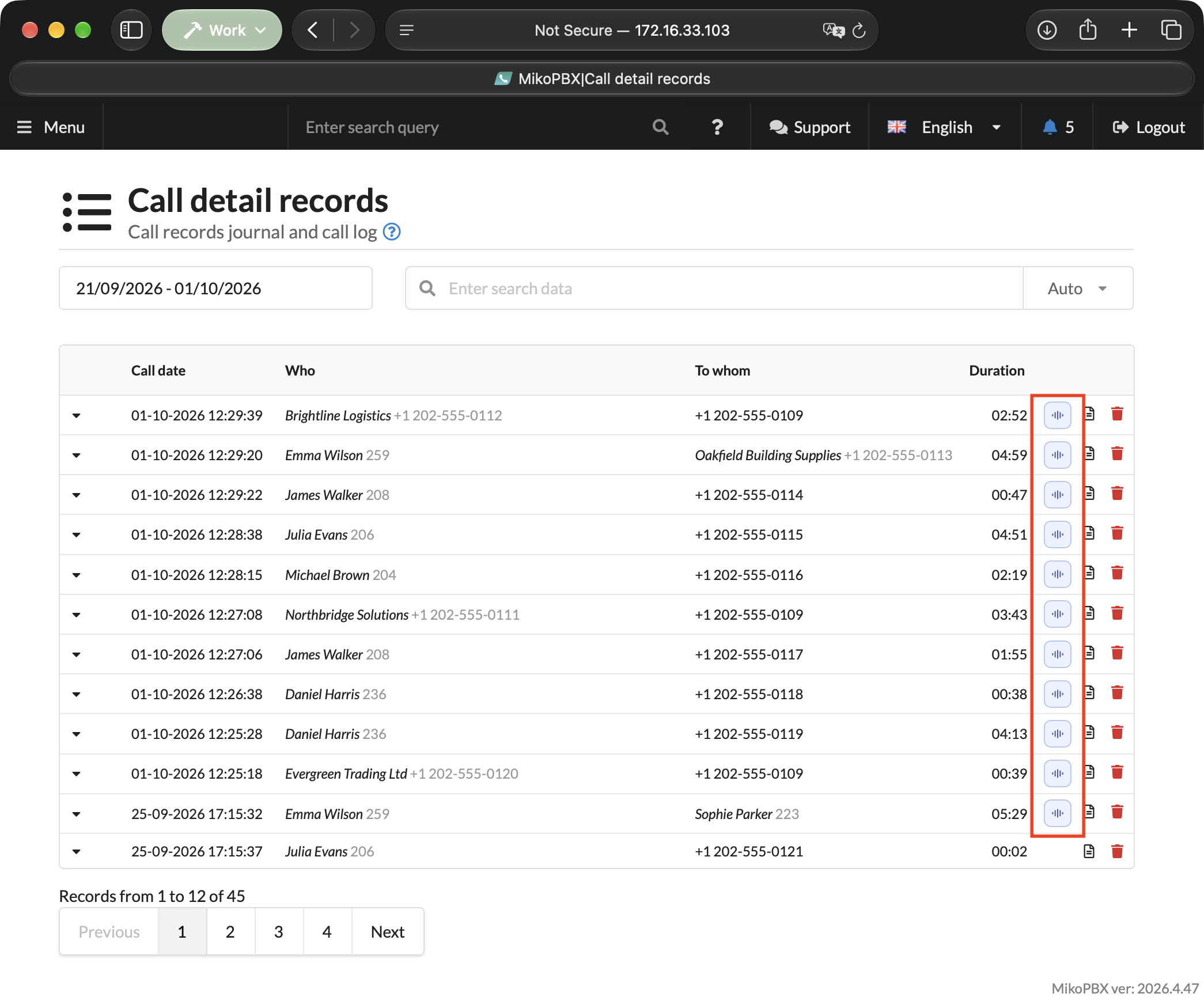
### Transcript in call history

In the MikoPBX **Call history** section, a call with a completed transcript provides a **Call transcript** dialog containing the conversation text and an **Open transcript** button to open it in the module.

<figure><img src="https://835495363-files.gitbook.io/~/files/v0/b/gitbook-x-prod.appspot.com/o/spaces%2FsZ8acWnNlSalIHQjMFu1%2Fuploads%2FikQfIlxqZmHYGQ7CkhYK%2FCloudSTTCDR.png?alt=media&amp;token=08a32b04-bf18-4858-aae8-9c89c194c8f3" alt=""><figcaption><p>The button for opening a call transcript from the MikoPBX call history</p></figcaption></figure>

<figure><img src="https://835495363-files.gitbook.io/~/files/v0/b/gitbook-x-prod.appspot.com/o/spaces%2FsZ8acWnNlSalIHQjMFu1%2Fuploads%2F52hXEYb8xu238l57lpQP%2FCloudSTTTranscriptCardFromCDR.png?alt=media&amp;token=1356c68a-ab98-4bc3-a89c-5d00a20ae523" alt=""><figcaption><p>A transcript opened from the MikoPBX call history</p></figcaption></figure>


---

# Agent Instructions
This documentation is published with GitBook. GitBook is the documentation platform designed so that both humans and AI agents can read, navigate, and reason over technical content effectively. Learn more at gitbook.com.

## Querying This Documentation
If you need additional information that is not directly available in this page, you can query the documentation by asking a question.

Perform an HTTP GET request on the following URL with the `ask` and `goal` query parameters:

```
GET https://docs.mikopbx.com/mikopbx/english/modules/miko/module-cloud-speech-to-text.md?ask=<question>&goal=<user_goal>
```

`ask` is the immediate question: it should be specific, self-contained, and written in natural language.
`goal` is what the user is ultimately trying to achieve, the reason they need the answer. Sharing it helps GitBook give you a better, more relevant answer. A goal is most helpful when it describes the outcome the user wants rather than restating the question. For example, with `ask=how do I create an API token`, a goal like `automate deployments from our CI pipeline` lets GitBook tailor the answer to that use case.

The response will contain a direct answer to the question and relevant excerpts and sources from the documentation.

Use this mechanism when the answer is not explicitly present in the current page, you need clarification or additional context, or you want to retrieve related documentation sections.