# Gmail Setup (oAuth2)

{% hint style="info" %}
Setting up OAuth 2.0 in Google requires using the **station's URL address**.\
The easiest way is to create a DNS record on the local server **or** add an IP address-to-domain name mapping in the `hosts` file on the device from which the configuration is being performed.
{% endhint %}

## Google Account Settings

1. Before starting the setup, you need to change some Google account parameters. To do this, go to the account management page ([link](https://myaccount.google.com/)).

<figure><img src="https://835495363-files.gitbook.io/~/files/v0/b/gitbook-x-prod.appspot.com/o/spaces%2FsZ8acWnNlSalIHQjMFu1%2Fuploads%2FPFkYVkT69G0Tb6SuhOUW%2FmyaccountgooglecomUpd.png?alt=media&#x26;token=6d06c12f-9f1f-4d51-92a3-2b01d722ecf2" alt=""><figcaption><p>Google Account management page</p></figcaption></figure>

2. Go to the "**Security and sign-in**" section. Make sure that two-step authentication is configured.

<figure><img src="https://835495363-files.gitbook.io/~/files/v0/b/gitbook-x-prod.appspot.com/o/spaces%2FsZ8acWnNlSalIHQjMFu1%2Fuploads%2FNHMcWsc1qYjsmJ2FMX4m%2F2-stepverif_google.png?alt=media&#x26;token=f712057f-aa0f-478e-bc6e-29e9b0a35fd0" alt=""><figcaption><p>Two-step authentication setup</p></figcaption></figure>

3. Go to the Google Cloud Console, to the "**APIs & Services**" section ([link](https://console.cloud.google.com/apis/dashboard)). Create a project for the current task.

<figure><img src="https://835495363-files.gitbook.io/~/files/v0/b/gitbook-x-prod.appspot.com/o/spaces%2FsZ8acWnNlSalIHQjMFu1%2Fuploads%2FZC9eDMPkVNbhAAVPwAT7%2FgoogleCloudAPIs.png?alt=media&#x26;token=1484a475-630b-423a-95a6-41f2eb7d6b73" alt=""><figcaption><p>"APIs &#x26; Services" section in Google Cloud</p></figcaption></figure>

4. Go to the APIs library (the "**Library**" section).

<figure><img src="https://835495363-files.gitbook.io/~/files/v0/b/gitbook-x-prod.appspot.com/o/spaces%2FsZ8acWnNlSalIHQjMFu1%2Fuploads%2FwxYCcCQFSEhS0uwaOrAc%2FgoogleCloudAPIsLibrary.png?alt=media&#x26;token=0f95f74c-f4af-401d-81d2-6475467537dd" alt=""><figcaption><p>"Library" section in APIs &#x26; Services</p></figcaption></figure>

5. Enter "gmail api" in the search bar. Open the Gmail API card.

<figure><img src="https://835495363-files.gitbook.io/~/files/v0/b/gitbook-x-prod.appspot.com/o/spaces%2FsZ8acWnNlSalIHQjMFu1%2Fuploads%2Fs3IvYVykcziwB9BcVVMS%2FgoogleCloudGmailAPI.png?alt=media&#x26;token=c7e11067-ea5f-4c31-9c02-e9075dbd9685" alt=""><figcaption><p>Gmail API in the Google Cloud library</p></figcaption></figure>

6. Click "**Enable**" to connect.

<figure><img src="https://835495363-files.gitbook.io/~/files/v0/b/gitbook-x-prod.appspot.com/o/spaces%2FsZ8acWnNlSalIHQjMFu1%2Fuploads%2FKuCS7cpIPdLAFX0vbMTu%2FgoogleCloudEnableGmailAPI.png?alt=media&#x26;token=e47f7016-184a-4109-9620-3fa4d3cf666f" alt=""><figcaption><p>Enabling the API</p></figcaption></figure>

7. Go to the main **APIs & Services** page. Then click "**OAuth consent screen**".

<figure><img src="https://835495363-files.gitbook.io/~/files/v0/b/gitbook-x-prod.appspot.com/o/spaces%2FsZ8acWnNlSalIHQjMFu1%2Fuploads%2FfkUUYJ1Qg03S0Ho0xFFq%2FgoogleCloudOAuthConsentScreen.png?alt=media&#x26;token=6a4b48f8-dfa3-4146-8d7b-610e71be1c5a" alt=""><figcaption><p>"OAuth consent screen" section in APIs &#x26; Services</p></figcaption></figure>

8. Create a project (click "**Get started**"). Fill in an arbitrary name and your email. Select "**Internal**" as the Audience. Click "**Create**" to finish.

<figure><img src="https://835495363-files.gitbook.io/~/files/v0/b/gitbook-x-prod.appspot.com/o/spaces%2FsZ8acWnNlSalIHQjMFu1%2Fuploads%2FzsXRYW51qwRYo85QhJzX%2FgoogleCloudAudienceInternal.png?alt=media&#x26;token=c24d4d18-e993-467f-822b-88394157b67c" alt=""><figcaption><p>"Audience" parameter in project creation process</p></figcaption></figure>

9. Return to the main **APIs & Services** page. Then go to the "**Credentials**" section. Click "**Create credentials**". Select "OAuth client ID" to create.

<figure><img src="https://835495363-files.gitbook.io/~/files/v0/b/gitbook-x-prod.appspot.com/o/spaces%2FsZ8acWnNlSalIHQjMFu1%2Fuploads%2Fsi6Utrz72ZfeUbkBmduE%2FgoogleCloudnewOAuthCredentials.png?alt=media&#x26;token=7b769e1d-b789-4277-bc6a-380859928bfc" alt=""><figcaption><p>Creating a new OAuth client ID</p></figcaption></figure>

10. Select "**Web application**" as the Application type. Then enter an arbitrary name. Click "**Create**".

<figure><img src="https://835495363-files.gitbook.io/~/files/v0/b/gitbook-x-prod.appspot.com/o/spaces%2FsZ8acWnNlSalIHQjMFu1%2Fuploads%2Fdd3B6ZVAictbuTqmrti0%2FcreatingWebApp.png?alt=media&#x26;token=253e8676-4565-42e4-b064-baa32d5861d0" alt=""><figcaption><p>Creating a new OAuth client ID</p></figcaption></figure>

11. Add a new "**Authorized redirect URI**".

{% hint style="info" %}
Format:

<mark style="color:blue;">`https://mikopbx.station.com/pbxcore/api/v3/mail-settings/oauth2-callback`</mark>

Replace "mikopbx.station.com" with your station's URL.
{% endhint %}

<figure><img src="https://835495363-files.gitbook.io/~/files/v0/b/gitbook-x-prod.appspot.com/o/spaces%2FsZ8acWnNlSalIHQjMFu1%2Fuploads%2F451xUUBU68A2nWHrtE8m%2FaddingNewRedirectURl.png?alt=media&#x26;token=89c22011-e654-4ecf-843b-2d04e846d626" alt=""><figcaption><p>Adding a new redirect URL</p></figcaption></figure>

12. An OAuth client will be created. Save the Client ID and Client Secret to your notes. You will need this data for the connection in the future.

<figure><img src="https://835495363-files.gitbook.io/~/files/v0/b/gitbook-x-prod.appspot.com/o/spaces%2FsZ8acWnNlSalIHQjMFu1%2Fuploads%2FRIaVD0CDdWxPMSXDOxmB%2FOAuthclientCreated.png?alt=media&#x26;token=fd716ec5-0474-4113-b07e-1761dd98e89d" alt=""><figcaption><p>Successfully created client</p></figcaption></figure>

## Settings in MikoPBX

1. Go to the "**System**" -> "**Mail and notifications**" section:

<figure><img src="https://835495363-files.gitbook.io/~/files/v0/b/gitbook-x-prod.appspot.com/o/spaces%2FsZ8acWnNlSalIHQjMFu1%2Fuploads%2FmjLJlrIc6lgnICvDNHfx%2FMikoPBXMailSection.png?alt=media&#x26;token=41ae4e1e-833c-4f68-873d-20471bd7a9c4" alt=""><figcaption><p>"Mail and Notifications" section in MikoPBX</p></figcaption></figure>

2. Next, go to "SMTP Settings". Fill in the following parameters:

* **Sender address, Sender name** — your email and the name from which the emails will be sent.
* **Authentication type** — OAuth2.
* **SMTP login** — your email.
* **OAuth2 Provider** — Google/Gmail.
* **Application ID (Client ID), Secret key (Client Secret)** — the data saved from Google Cloud (step 12 from the previous section of this guide).

Leave all other settings at their default values. A more detailed description can be found in the main article about mail parameters ([link](https://docs.mikopbx.com/mikopbx/english/manual/system/mail-settings-1)).

After that, click "**Save**"!

<figure><img src="https://835495363-files.gitbook.io/~/files/v0/b/gitbook-x-prod.appspot.com/o/spaces%2FsZ8acWnNlSalIHQjMFu1%2Fuploads%2FyirZ0OwYTyTM5Q8lU3Ns%2FSMTPParametersGmailOAuth2ast.png?alt=media&#x26;token=3ffcd381-adfd-42f4-86c7-05885e718b09" alt=""><figcaption><p>Mail parameters for connecting Gmail</p></figcaption></figure>

3. Click the blue "**Connect via OAuth2**" button. Then select your Gmail account.

<figure><img src="https://835495363-files.gitbook.io/~/files/v0/b/gitbook-x-prod.appspot.com/o/spaces%2FsZ8acWnNlSalIHQjMFu1%2Fuploads%2FAE8hckqYR8qZ8nySL7pO%2FGoogleOauthStep1.png?alt=media&#x26;token=e77b4b3e-f434-40ab-a487-49e88c42f783" alt="" width="375"><figcaption><p>Selecting a Google account</p></figcaption></figure>

4. Confirm the sign-in: click "**Continue**".

<figure><img src="https://835495363-files.gitbook.io/~/files/v0/b/gitbook-x-prod.appspot.com/o/spaces%2FsZ8acWnNlSalIHQjMFu1%2Fuploads%2F0TgV4nSKEZGGtQg6WM0o%2FGoogleOauthStep2.png?alt=media&#x26;token=b9e98ba3-1603-48b7-995b-76e5aaa3ed25" alt="" width="375"><figcaption><p>Continuing authorization</p></figcaption></figure>

5. Confirm granting the required permissions (click "**Allow**").

<figure><img src="https://835495363-files.gitbook.io/~/files/v0/b/gitbook-x-prod.appspot.com/o/spaces%2FsZ8acWnNlSalIHQjMFu1%2Fuploads%2FfOWAISPBe5NJF5fIBbeV%2FGoogleOauthStep3.png?alt=media&#x26;token=36d2ba3c-5645-4c6d-b1e5-971242ee6f3a" alt="" width="375"><figcaption><p>Granting permissions</p></figcaption></figure>

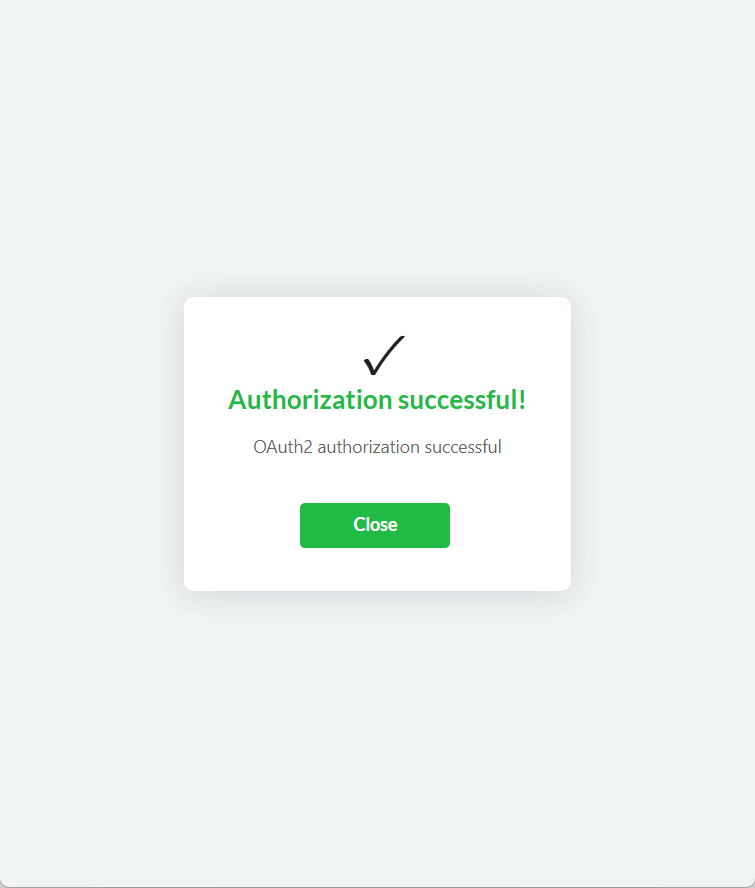
Upon successful authorization, you will see the following window.

<figure><img src="https://835495363-files.gitbook.io/~/files/v0/b/gitbook-x-prod.appspot.com/o/spaces%2FsZ8acWnNlSalIHQjMFu1%2Fuploads%2FHiBjrrzCehI4ftJxqtlB%2FsuccessfulOAuth2.png?alt=media&#x26;token=69145b4a-6765-4e14-a492-39c850a0ae58" alt="" width="375"><figcaption><p>Successful authorization</p></figcaption></figure>

#### Troubleshooting

Access blocked: Authorization Error (\*\*Error 400: invalid\_request)

<figure><img src="https://835495363-files.gitbook.io/~/files/v0/b/gitbook-x-prod.appspot.com/o/spaces%2FsZ8acWnNlSalIHQjMFu1%2Fuploads%2FzZWDjMSDsBb5YrtK5iSs%2FGoogleInvalidRequest.png?alt=media&#x26;token=77f77192-afa3-4ba8-b799-235e97ee12e0" alt="" width="375"><figcaption><p>Error 400: invalid_request</p></figcaption></figure>

Solution: enter the station's URL address in the MikoPBX web interface: "**Network and Firewall**" -> "**Network Interfaces**". Go to the "Network Topology" section and enter the hostname in the "**External hostname of your router**" field. (Enable "**This station is located behind a NAT router**".)

<figure><img src="https://835495363-files.gitbook.io/~/files/v0/b/gitbook-x-prod.appspot.com/o/spaces%2FsZ8acWnNlSalIHQjMFu1%2Fuploads%2FsOhgCSZdKhtMiF1pPozy%2FGoogleInvalidRequestSolution.png?alt=media&#x26;token=4e8ae9ab-8c02-415a-892a-dea560405809" alt=""><figcaption><p>Problem solution</p></figcaption></figure>