githubEdit

Microsoft Outlook Setup (OAuth2)

Mail setup for the Outlook service (outlook.com; hotmail.com)

Settings in Microsoft Entra

Application Registration

Microsoft Entra admin center home page
  1. Go to "Entra ID" -> "App registrations". Then click "New registration" to register a new application.

Registering a new application
  1. Select the following parameters for your application:

  • Name - enter a name for your application.

  • Supported account types - select "Accounts in any organizational directory (Any Microsoft Entra ID tenant - Multitenant)".

Application parameters
  1. Specify the Redirect URL:

  • Select a platform — select "Web".

  • URL:

Replace 192.168.100.71 with your MikoPBX address.

Then click "Register".

Redirect URL parameters
  1. The application will be created. Save the Client ID — you will need it in the future for configuration inside the MikoPBX web interface.

Created application overview page

Granting Permissions and Creating a Client Secret

  1. From the application's main page, go to "Manage" -> "API permissions".

"API permissions" section
  1. Click "Add a permission".

Adding permissions
  1. In the "Microsoft Graph" section, select "Delegated Permissions". Enter "SMTP" in the search bar. Check the box next to "SMTP.Send".

Granting the "SMTP.Send" permission
  1. Also enter "offline" in the search bar. Check the box next to "offline_access".

Click "Add permissions".

Granting the "offline_access" permission
  1. Next, go to "Certificates & secrets" -> "Client secrets". Click "New client secret".

Creating a new Secret ID
  1. Set the required parameters:

  • Description - an arbitrary description.

  • Expires - the duration for which you are issuing this client secret. It will be needed for application authentication in MikoPBX.

circle-info

After expiration, the created client secret will stop functioning and you will need to repeat the process of creating a new key and connecting to MikoPBX.

triangle-exclamation

Click "Add".

Parameters for creating a new client secret
  1. Copy the "Value" (not the Secret ID!). It will be needed for configuration in the MikoPBX web interface.

Copying the Value of the previously created Client Secret

Granting Permissions to a User

For the application to work correctly, you need to grant permission to use the SMTP protocol for the user whose mailbox you are authorizing during this setup. To do this, follow these steps:

  1. Go to the organization's admin center (linkarrow-up-right).

Microsoft Admin Center home page
  1. Go to "Users" -> "Active Users". Click on the name of the user account under which the application is being created.

"Active Users" section in Microsoft Admin Center
  1. In the account, go to the "Mail" section and select "Manage email apps".

"Mail" section in the user account
  1. Make sure that "Authenticated SMTP" is allowed. Save the changes by clicking "Save changes".

Allowing Authenticated SMTP for the selected user
Settings in MikoPBX

  1. Go to the MikoPBX web interface. Then "System" -> "Mail and Notifications" -> "SMTP Settings".

Fill in all the required fields:

  • Sender address, Sender name — your email and the name from which the emails will be sent.

  • Authentication type — OAuth2.

  • SMTP login — your email.

  • OAuth2 Provider — Microsoft/Outlook.

  • Application ID (Client ID), Secret key (Client Secret) — data from Microsoft Entra.

Leave all other settings at their default values. A more detailed description can be found in the main article about mail parameters (linkarrow-up-right).

After that, click "Save"!

To do: paste screenshot.

  1. Click "Connect via OAuth2". Sign in to your Microsoft account. Then confirm granting all requested permissions.

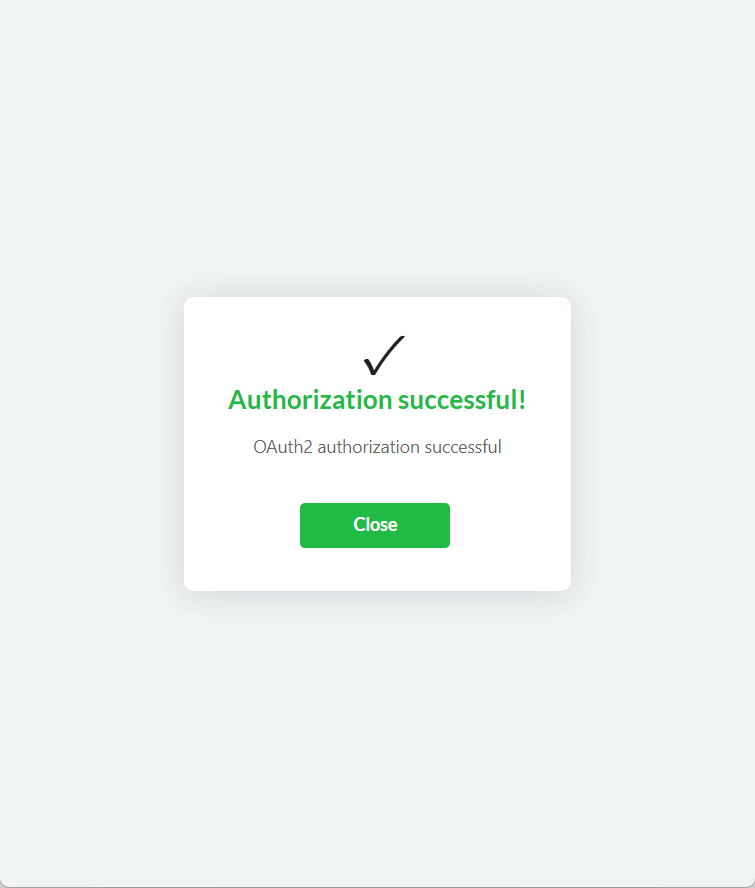
Upon successful authorization, you will see the corresponding window.

To do: paste screenshot.

Last updated

Was this helpful?