# Access control management

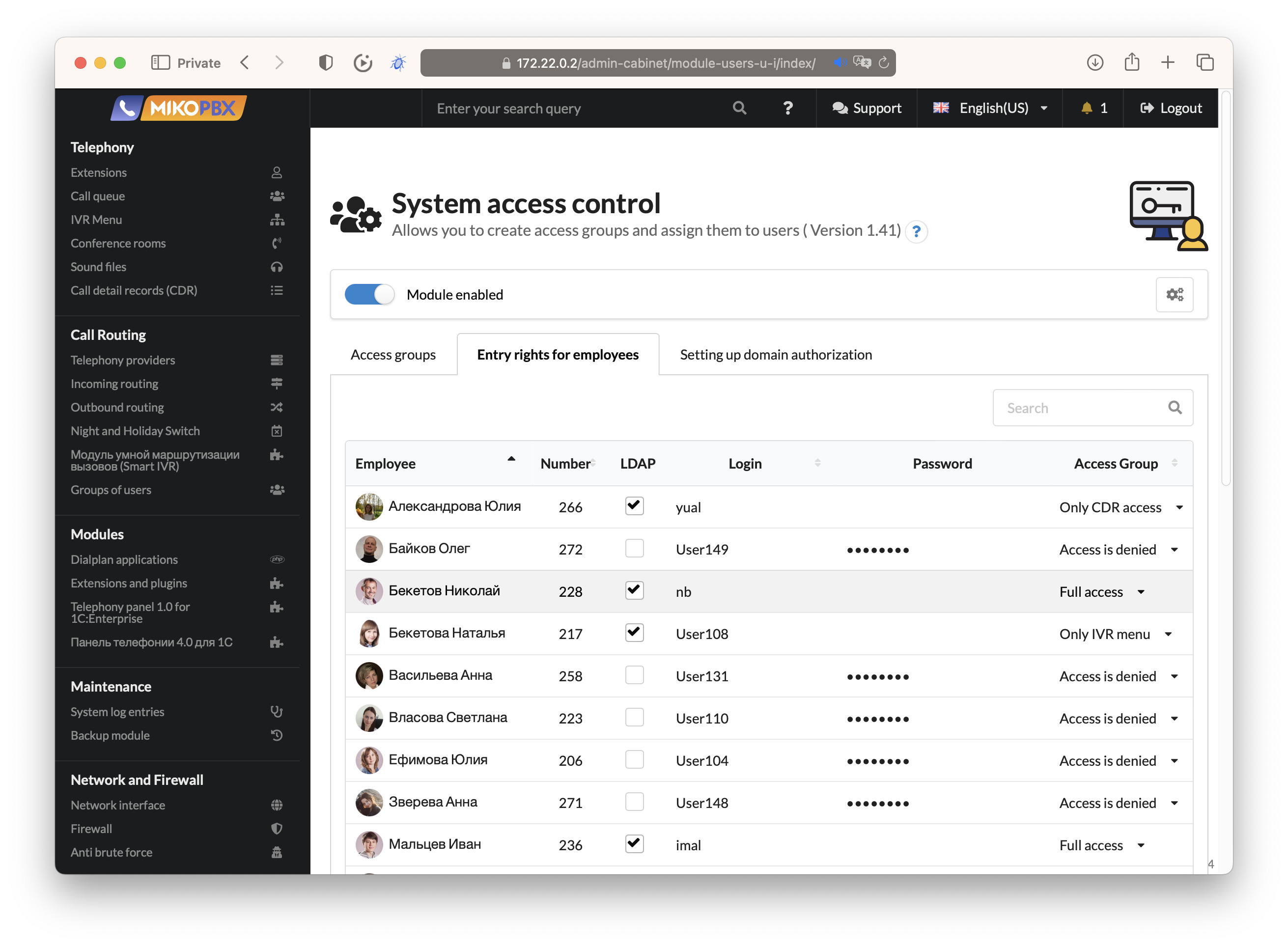
<figure><img src="/files/RfsDFzAx2HF37HG4tpCD" alt=""><figcaption><p>The module page for configuring access groups</p></figcaption></figure>

Additionally, the module allows for authentication in MikoPBX using external LDAP/AD services or simply assigning a login and password to each employee.

<figure><img src="/files/D9i5BfHgmIBXSrt1NppM" alt=""><figcaption><p>Assignment of access groups and authentication credentials</p></figcaption></figure>

The module also adds a new tab to the employee settings page, allowing for quick assignment of access groups or password changes directly from their profile card.

<figure><img src="/files/eSM84UDtHUCItVxFGEe6" alt=""><figcaption><p>An additional tab in the employee profile card with access group configuration settings</p></figcaption></figure>

Let's consider a few common scenarios for MikoPBX access control:

### Scenario 1: Access for Multiple Administrators

1. Create an access group and enable the **Group without access restrictions** toggle.
2. Choose the home page that administrators will land on after authentication.

<figure><img src="/files/hSI9UPpNp0nE6JJpubzT" alt=""><figcaption><p>Setting up the access group for administrators</p></figcaption></figure>

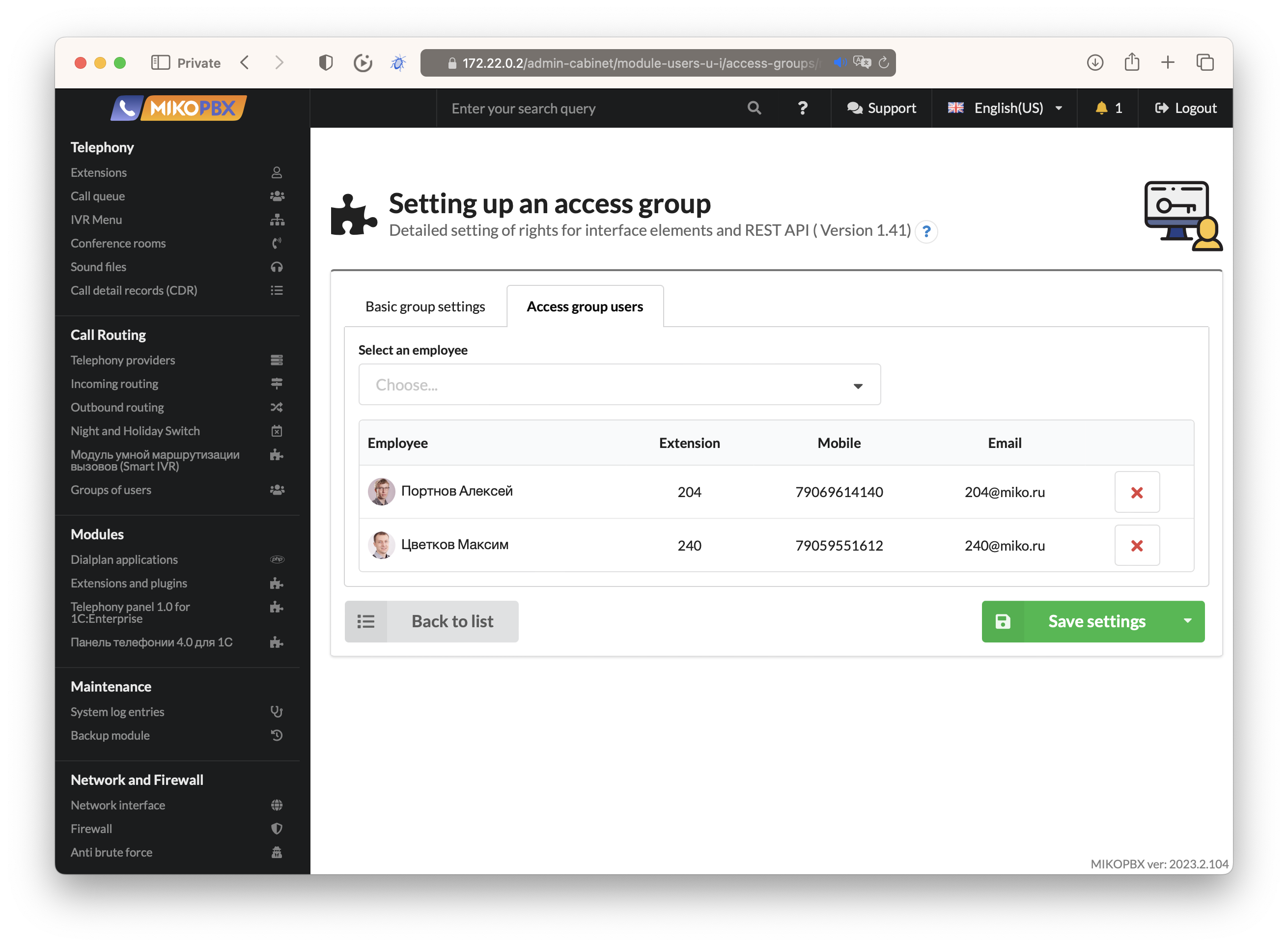
Next, navigate to the "Users" tab of the access group and select the employees who will be granted permission to administer the system.

<figure><img src="/files/BsfPS7b8op8Y1raGvxK9" alt=""><figcaption><p>To select users for the access group</p></figcaption></figure>

### Scenario 2: Access Limited to IVR Menu Administration

Create an access group with restricted privileges that grants access only to IVR menu administration.

<figure><img src="/files/v8pmjDfyPz4Gw09TFFBT" alt=""><figcaption><p>Access group with IVR menu editing rights</p></figcaption></figure>

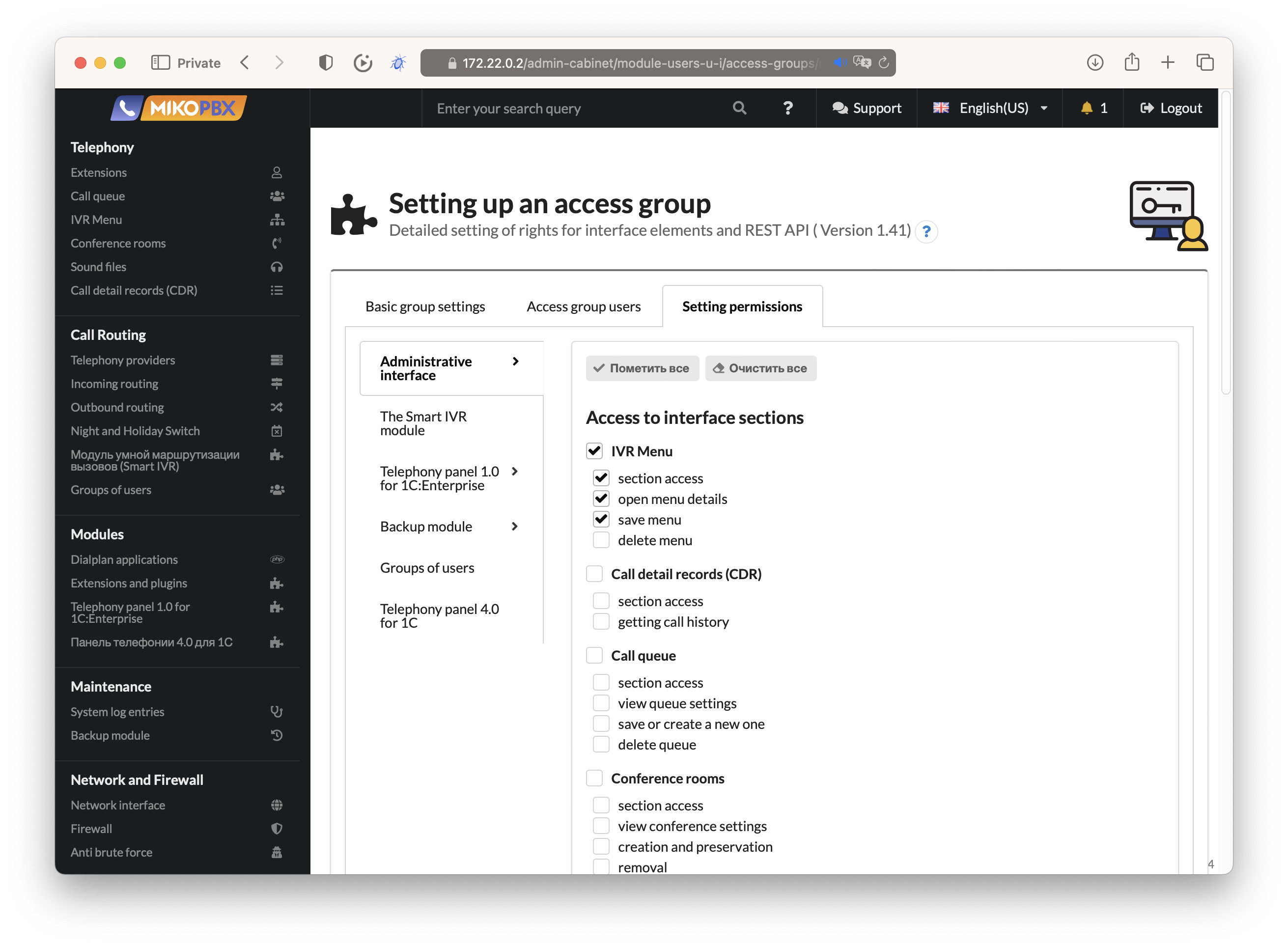
Next, go to the **Setting permissions** tab and select only the necessary rights to view and modify existing IVR menus.

<figure><img src="/files/c7eQZ941IV8ghOU68132" alt=""><figcaption><p>Detailed access control settings in MikoPBX</p></figcaption></figure>

Assign the access group to employees who will administer the IVR menus and save the access group.

### Scenario 3: Access to Call History with User Filtering

Create an access group, disable full privileges, and grant access only to the call history section with user filtering.

<figure><img src="/files/6ebdq6Dvy8yk8ksHcbaf" alt=""><figcaption><p>Configure access to call history in MikoPBX</p></figcaption></figure>

When selecting this section, an additional tab appears in the module settings, allowing you to configure permissions for viewing and listening to call recordings on a per-employee basis.

<figure><img src="/files/GIiAfSMc8X2KgRKCAWMx" alt=""><figcaption><p>Configuring permissions for listening and viewing call recording history in MikoPBX</p></figcaption></figure>

You can select various filtering options and employees whose call recordings can be listened to by users within this access group.

### LDAP Authorization Configuration

The module allows users to be authenticated either with a simple login-password pair or by using an external LDAP authentication server. To configure the connection with the server, navigate to the "Domain Authorization Settings" tab.

<figure><img src="/files/7fb7QND0YgYpCdB7Vt4T" alt=""><figcaption><p>Setting up access parameters for the domain controller</p></figcaption></figure>

Please provide the access parameters to your domain. If necessary, specify the parameters for the organizational unit and the filter for user accounts. Before saving, you can perform a connection data check and retrieve a list of users from the server.

<figure><img src="/files/UzbjRh17jXfQb7qa7jbR" alt=""><figcaption><p>Testing the connection with the domain controller</p></figcaption></figure>

At the end, you can enter user credentials to test the authorization and save the module settings.


---

# Agent Instructions: Querying This Documentation

If you need additional information that is not directly available in this page, you can query the documentation dynamically by asking a question.

Perform an HTTP GET request on the current page URL with the `ask` query parameter:

```
GET https://docs.mikopbx.com/mikopbx/english/modules/miko/module-users-u-i.md?ask=<question>
```

The question should be specific, self-contained, and written in natural language.
The response will contain a direct answer to the question and relevant excerpts and sources from the documentation.

Use this mechanism when the answer is not explicitly present in the current page, you need clarification or additional context, or you want to retrieve related documentation sections.